Get it
Play Exalted on your iPhone or iPad: the same account, character and world as on your computer. There is nothing to download from the App Store. Exalted opens in Safari, you add it to your Home Screen once, and from then on it opens full screen like any other app.
Open Exalted- Address
- exaltedrs.org/ios
- Works on
- iPhone and iPad, in Safari
On a computer? Open this page on your iPhone, or type exaltedrs.org/ios into Safari there.
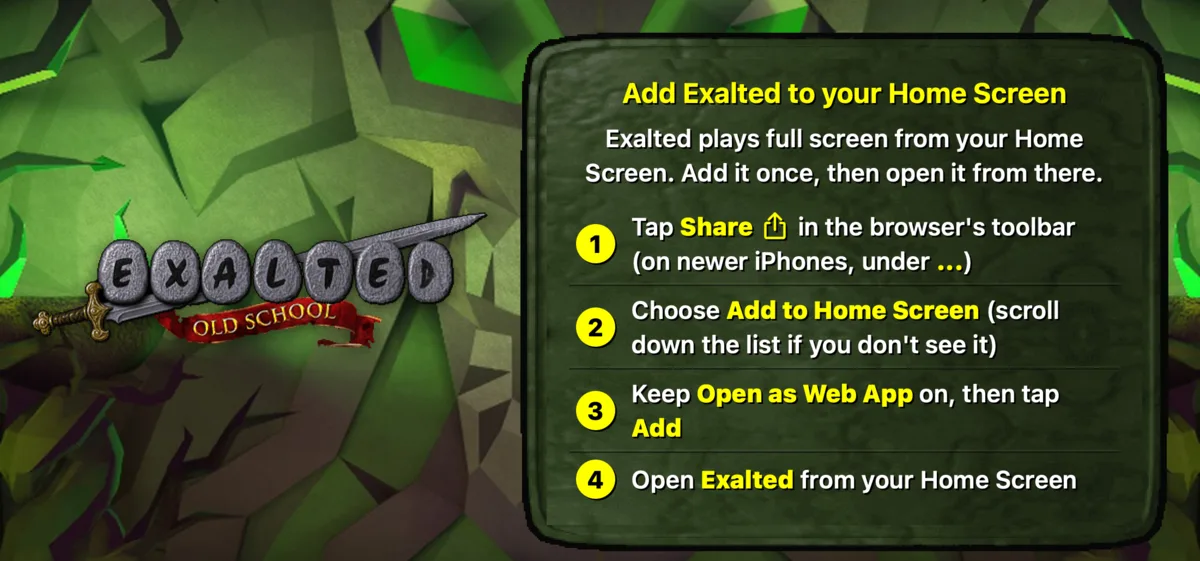
Add it to your Home Screen
Do this once. It takes about a minute.
- On your iPhone, open exaltedrs.org/ios in Safari (or tap Open Exalted above).
- Tap Share in Safari's toolbar. On newer iPhones it is under the ... button.
- Choose Add to Home Screen. If you do not see it, scroll down the list.
- Keep Open as Web App on, then tap Add.
- Open Exalted from your Home Screen and turn your phone sideways.
The first start takes a little longer while the game downloads. Your phone keeps it, so later starts are quick, and a new version of the game is picked up by itself when you open the app.
Log in
- Tap Existing User.
- Type your exaltedrs.org name and password, the same ones you use on your computer, and tap Login.
- New to Exalted? Type the name and password you want and tap Login. The game says no account by that name exists yet: check the name, then tap Login again within a minute and your account is created.
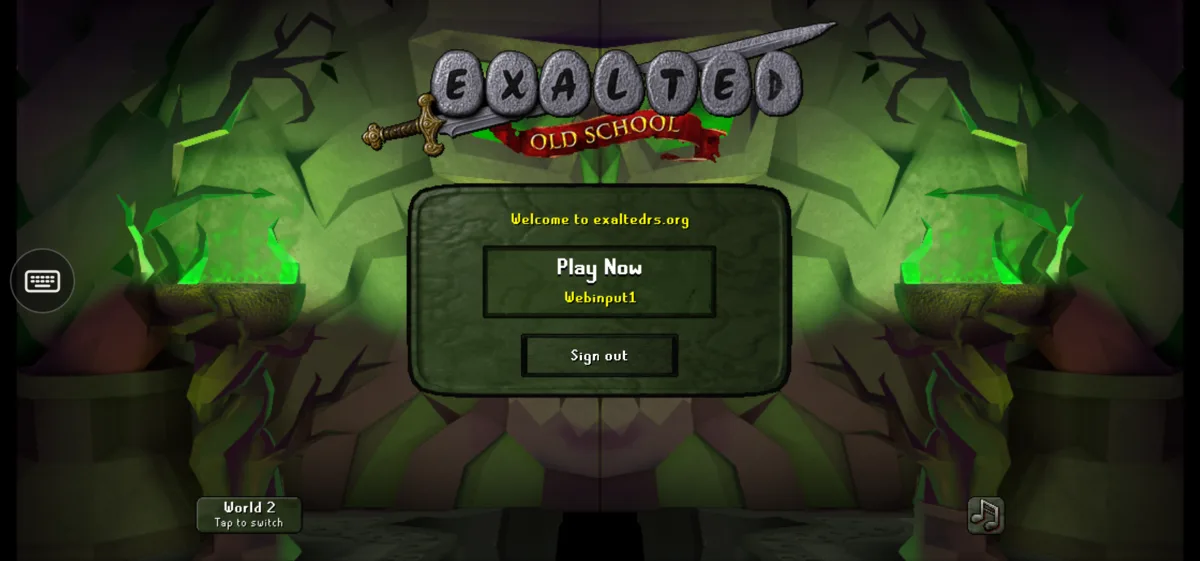
After your first login the app remembers you: next time, tap Play Now and you are straight in. If you change your password, the app asks you to log in again. Sign out under Play Now forgets you on this phone.
Playing
- Tap to walk, attack and use things.
- Press and hold for the right-click menu, then slide to an option and let go.
- Drag with one finger to turn the camera, and pinch to zoom.
- The chat button at the top left opens the keyboard. On the login screen, tap a field to type.
If you switch to another app or lock your phone, you stay in the game for a short while, as on Android, and the app reconnects when you come back.
Phone getting hot? Lower your frame rate
Exalted draws up to 60 frames a second, which works your phone hard and can make it warm and drain the battery. Drawing fewer frames keeps it cooler and makes the battery last longer.
- In the game, open the Settings tab and tap All Settings.
- Tap Display, or search for framerate.
- Set Limit framerate to 30 fps. Pick 20 or 15 fps to save even more battery.
The game still plays at the same speed. Only the picture moves a little less smoothly. Your phone remembers your choice, and you can set it back to Unlimited at any time.
Questions
- Does my desktop account work?
- Yes. It is the same account and character you play on your computer, so your progress goes with you both ways.
- Is it on the App Store?
- No. Apple does not allow it there, so Exalted runs from Safari and your Home Screen instead. Nothing is installed from outside the App Store.
- Safari only shows "Add Exalted to your Home Screen"?
- That is expected: the game only runs from the Home Screen. Follow the steps on that card, then open Exalted from your Home Screen.
- Forgot your password?
- Reset it on exaltedrs.org, then log in with the new one.
- Does it work on an iPad?
- Yes, the same way: open exaltedrs.org/ios in Safari and add it to your Home Screen.
- On Android?
- Get the Android app instead.
- How do I remove it?
- Like any app: press and hold Exalted on your Home Screen and choose Remove App. Your account and character stay on the server.